
Who This Guide Is For & Goal
This tutorial targets traders running multiple MT5 terminals concurrently on Windows. It explains ① batch launching with a .bat file and ② auto start (Startup / Task Scheduler). The goal is to ensure all MT5s launch automatically after a PC/VPS reboot without any clicks.
For installing multiple MT5s from the same or different brokers on a single PC/VPS, see (related article: How to Install & Run Multiple MT5 Instances on One PC/VPS [Beginner Guide]).
Benefits of Batch/Auto Start
1) Zero-click recovery after reboot
Even after Windows Update or VPS maintenance, MT5 starts automatically in order and EAs resume immediately.
2) Fewer mistakes via standardized startup
Prevents missed instances and wrong order in manual startup. With logs, root-cause analysis becomes easier.
3) Load smoothing
Staggered delays (seconds) avoid CPU/IO spikes and improve stability.
Preparation: MT5 Placement & Folder Design
Assumption: This guide assumes you place each MT5 folder directly under C drive, e.g. C:\HFM Metatrader 5\ or C:\MetaTrader 5 IC Markets (SC)\ (no need to create a dedicated C:\MT5\ folder).
Why: Placing at the root simplifies path handling (quotes for spaces/parentheses), clarifies write permissions, and eases backup/clone ops. While Program Files also works, for multi-instance operations the C-root layout is usually easier. See MT5×EA UAC Permission Errors: Causes & Workarounds.


- If relocating an existing install, copy the entire folder so that
terminal64.exeexists at each folder root.
[Batch Start] Create a .bat File
Steps
Create a new text document (Notepad) on the desktop.
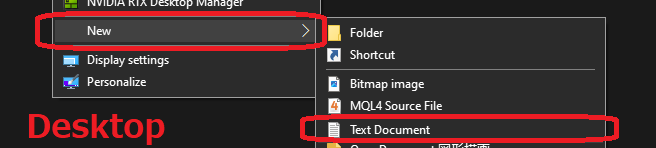
Paste the following and save (adjust paths to your MT5 folder names).
@echo off
rem ===== MT5 batch launch script =====
setlocal

rem (Optional) wait for network (seconds)
set WAIT_NET=10
timeout /t %WAIT_NET% /nobreak >nul

rem ---- 1st (explicit working directory) ----
start "" /D "C:\MetaTrader 5 IC Markets (SC)" "terminal64.exe" /portable
timeout /t 3 /nobreak >nul

rem ---- 2nd ----
start "" /D "C:\HFM Metatrader 5" "terminal64.exe" /portable
timeout /t 3 /nobreak >nul

rem ---- 3rd and beyond: repeat as above ----

endlocal
Rename the file to mt5_start_all.bat.
(Change the extension from .txt to .bat. If extensions are hidden, in Windows “View” tab check “File name extensions”. Click “Yes” if prompted.)

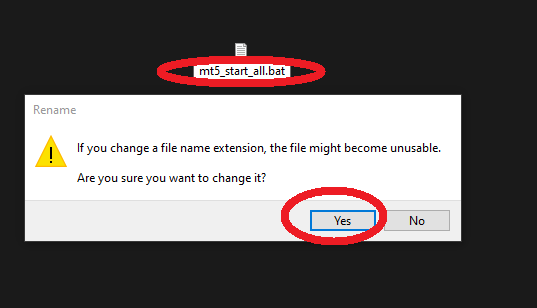
Launch MT5
Double-click mt5_start_all.bat to start multiple MT5 instances in sequence.
Tips
start "" /D "Folder" "terminal64.exe"correctly sets the working directory.- Add
timeout /t 3between launches to smooth spikes. If you have many terminals, extend to 5–10 seconds. - To change targets (add/remove MT5), right-click the bat file and choose “Edit”.
[Auto Start · Recommended] Register in Startup
The simplest and most reliable method. The bat runs automatically on Windows logon.
Steps
Type shell:startup in File Explorer’s address bar to open the Startup folder.
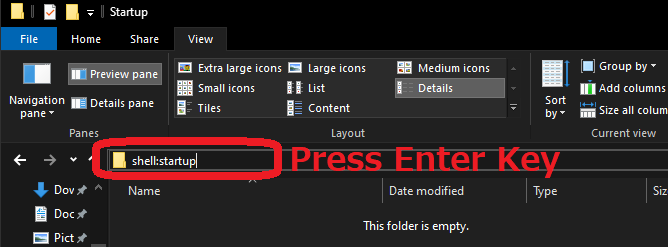
Copy mt5_start_all.bat into this folder. A shortcut also works.
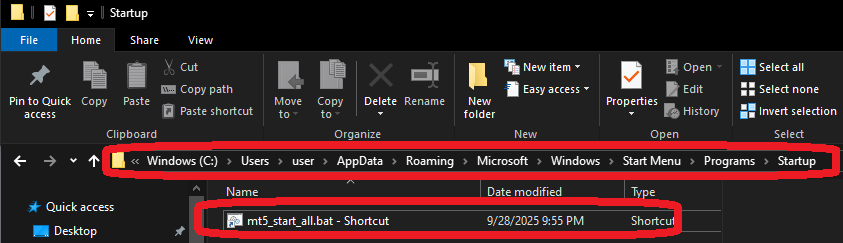
Note: Startup runs after logon. On PCs/VPSs without auto-logon, this has no effect.
[Auto Start · Alternative] Register via Task Scheduler
Allows finer control such as delayed start and retries (GUI app, so logon is required).
Basic Settings
- Open “Task Scheduler” → “Create Task”.
- General: Name “MT5 Auto Start”, select “Run only when user is logged on” (for GUI). Usually leave “Run with highest privileges” off.
- Triggers: “At log on”. Optionally “Delay task” (e.g., 30 seconds).
- Actions: “Start a program”.
Program/script:C:\mt5_start_all.bat
Start in (optional):C:\(adjust to where the bat resides) - Conditions: Recommend “Start only if the network connection is available”.
- Settings: “If the task fails, restart every” → 1 minute, 3 times, etc.
Note: The “At startup (system boot)” trigger runs in service (Session 0) mode and does not show the MT5 UI, so it’s not recommended.
Advanced: Delay, Logs, Priority/CPU Affinity
Write a launch log
Add log outputs at the start and end of the bat.
@echo off
set LOG=%~dp0mt5_start.log
echo [%date% %time%] --- MT5 launch started --- >> "%LOG%"
rem ... (launch commands) ...
echo [%date% %time%] --- MT5 launch finished --- >> "%LOG%"
Set priority and CPU affinity
Useful under heavy load (advanced).
start "" /HIGH /AFFINITY 3 /D "C:\HFM Metatrader 5" "terminal64.exe" /portable
rem /AFFINITY 3 = use CPU0+CPU1 (hex bitmask)
Stop script (force kill · caution)
Forced termination may cause data loss. Use only for planned shutdowns.
@echo off
taskkill /IM terminal64.exe /F
rem Note: This kills all instances. To target specific ones, filter by command-line conditions.
Troubleshooting
- Doesn’t start / only some start: Check path typos and missing quotes around spaces (e.g.,
"C:\HFM Metatrader 5\terminal64.exe"). - EA errors due to no network: Add a
timeoutat the top of the bat to delay; in Task Scheduler enable “Start only if the network is available”. - Heavy load from concurrent start: Increase
timeoutto 5–10 seconds between terminals. Consider affinity if needed. - Is /portable necessary?: For multi-instance ops, recommended. It prevents settings/MQL collisions.
Related Articles
- How to Install & Run Multiple MT5 Instances on One PC/VPS [Beginner Guide]
- VPS Operations Basics: Keep It Running & Light
- Choosing the “Cheapest VPS” for EAs: Low Latency × Stability × Value (2025 Global)
- EA on VPS vs On-Prem PC? A Full Comparison (with power cost)
FAQ
- Q. What’s the difference between
C:\Users\…\AppData\Roaming\MetaQuotes\Terminal\…andC:\HFM Metatrader 5\? - A. The former is MT5’s default data folder (per-user). The latter is an example of a program location. For multi-instance ops, placing separate folders under C root (e.g.,
C:\HFM Metatrader 5\) with /portable keeps data isolated and easier to manage. - Q. Should I add /portable?
- A. For concurrent multi-instance operation, recommended. Profiles live inside each folder, preventing collisions (using /portable under
Program Filesisn’t recommended). - Q. Startup vs Task Scheduler?
- A. Start with Startup (at logon)—simple and stable. If you need delayed start/retries, move to Task Scheduler (At log on / Run only when user is logged on).
- Q. Is auto-logon required?
- A. Startup runs after logon. For fully headless operation, configure auto-logon or automate logon via RMM, etc.
- Q. How to decide launch order?
- A. List important accounts (EAs) first and add a few-second
timeoutbetween launches.